How to use Sheets
From installing the app to a live report your team opens every morning, step by step.
- 01
Install and open Sheets
Install Sheets from the monday.com marketplace, then add Sheets to a workspace and open it: your files, folders and shared spreadsheets appear.
- 02
Add a board as a data source
In a spreadsheet, open Data → Add data and pick a board. It gets a short name such as projects; its columns become names formulas can use.
- 03
Write a live formula
Type =data.projects.sum(budget, status, "Working on it") in a cell. The value is read from the board with your own permissions and stays current.
=data.projects.sum(budget, status, "Working on it")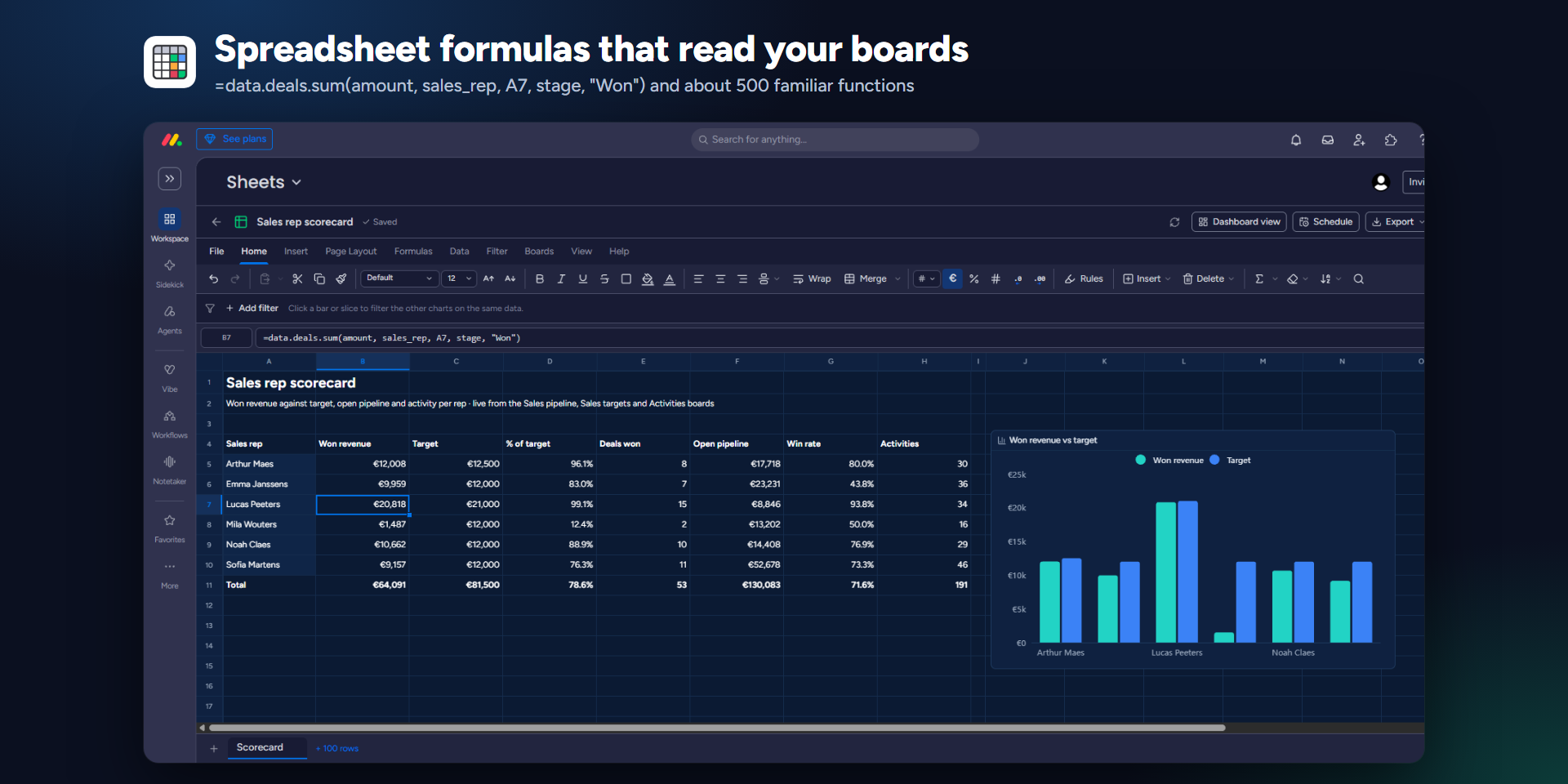
- 04
Build a pivot table and a chart
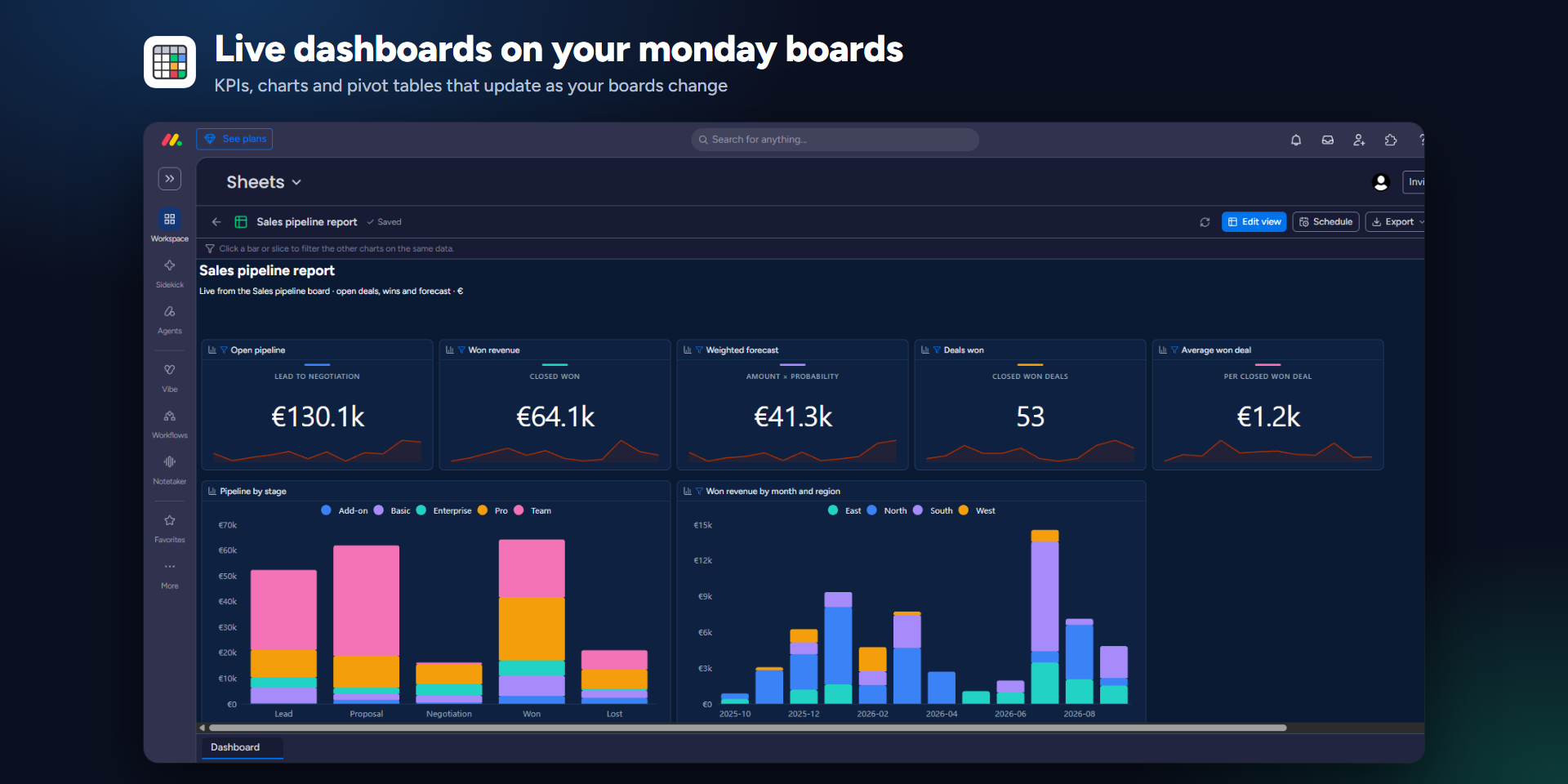
Insert a pivot table on the board, put Status in rows and Budget in values, then add a chart. A click on a bar filters the other charts on the same data.
- 05
Share the file
Share with people, teams or everyone in the account as viewer or editor. Each viewer still sees only the boards they may see.
- 06
Schedule a report
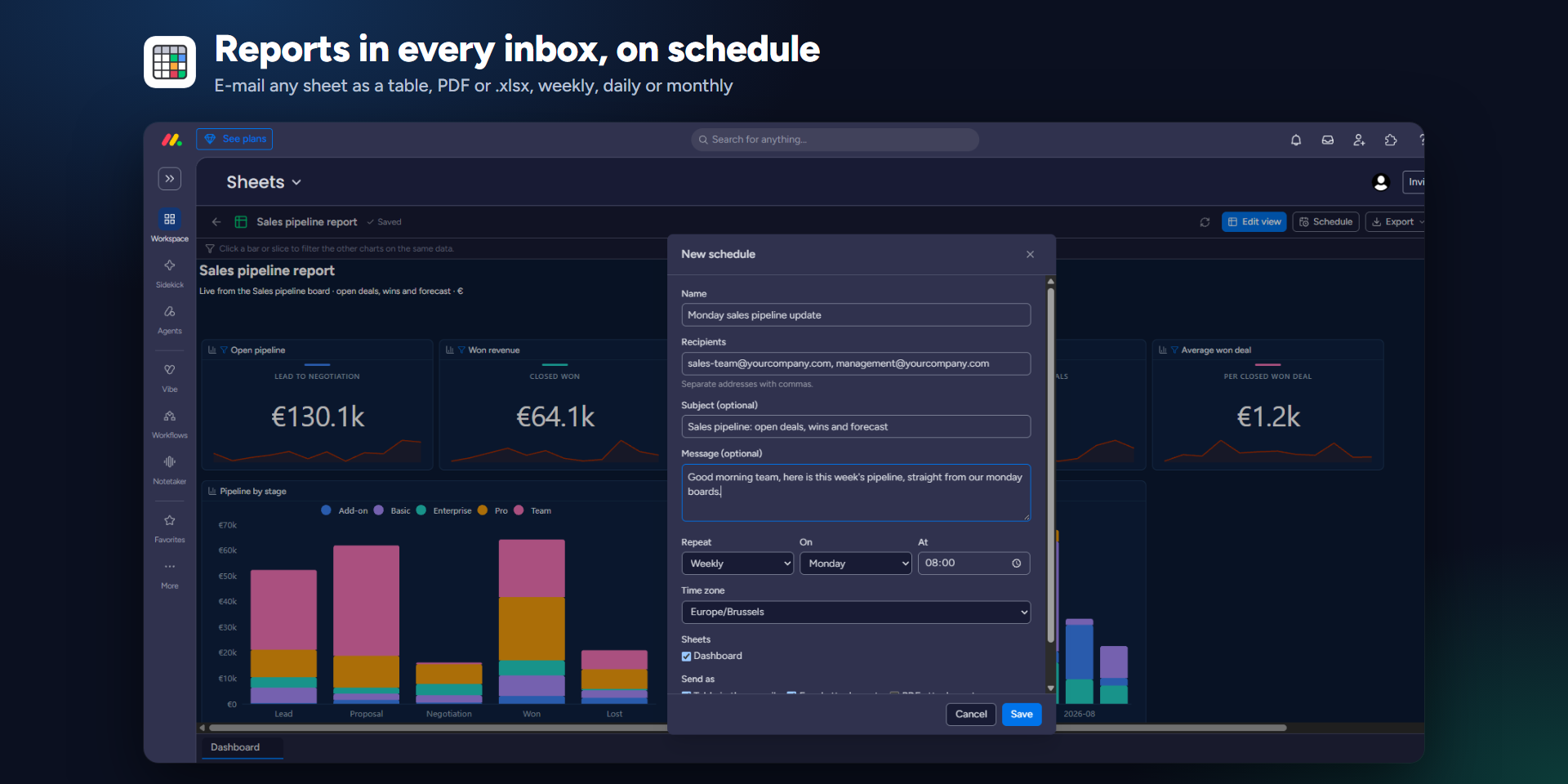
Choose Schedule, pick recipients, a time and PDF or .xlsx. An account admin sets the sender once: Google, Microsoft, SMTP or Resend.
- 07
Work with AI
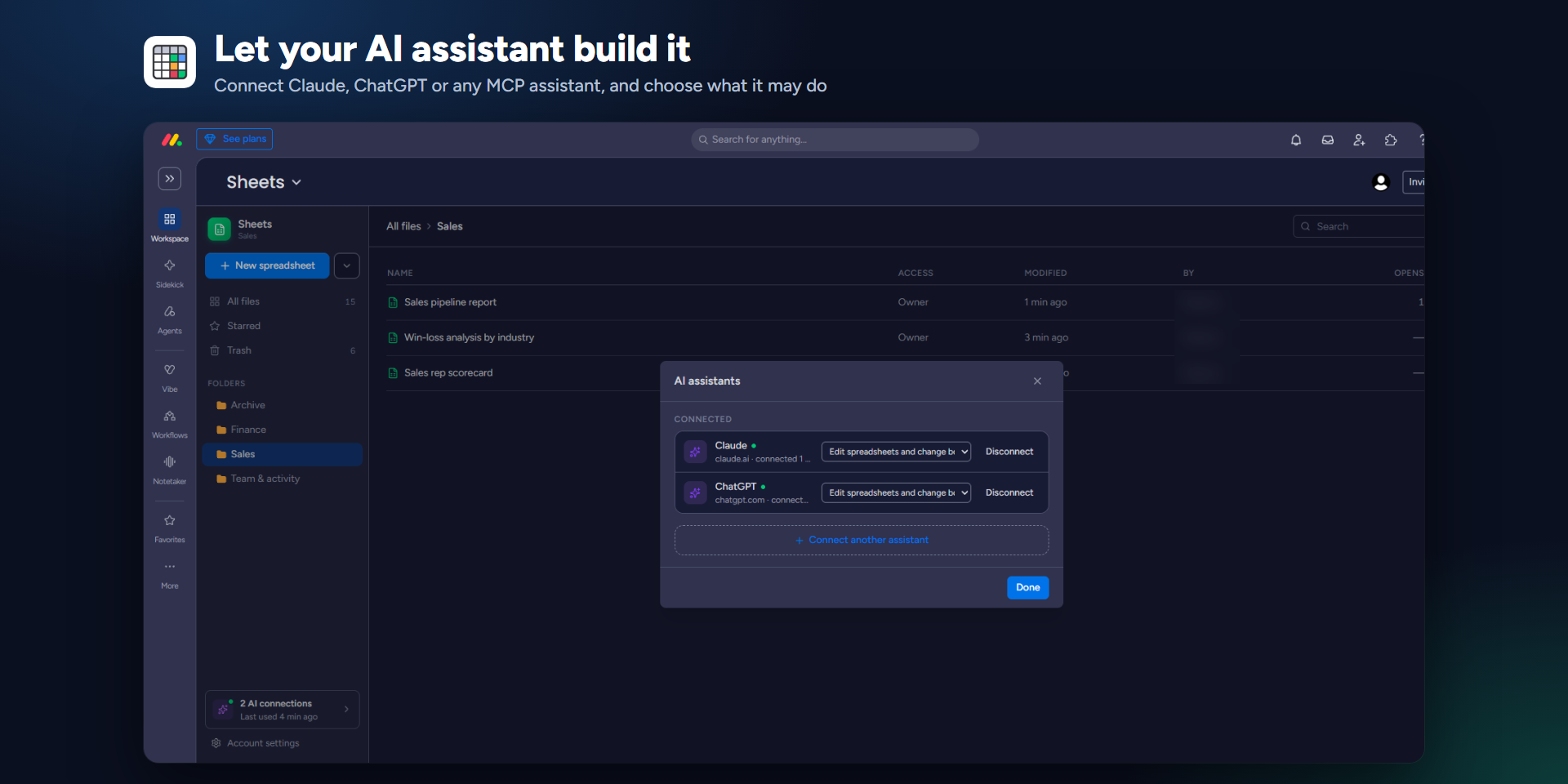
Open Work with AI, connect Claude or another MCP client and choose what it may do: read only, read and edit, or also send changes to boards. Revoke it there at any time.
Questions? Use the contact page or write to [email protected]. Contact